
EkaivaKriti
AI-Powered Solutions
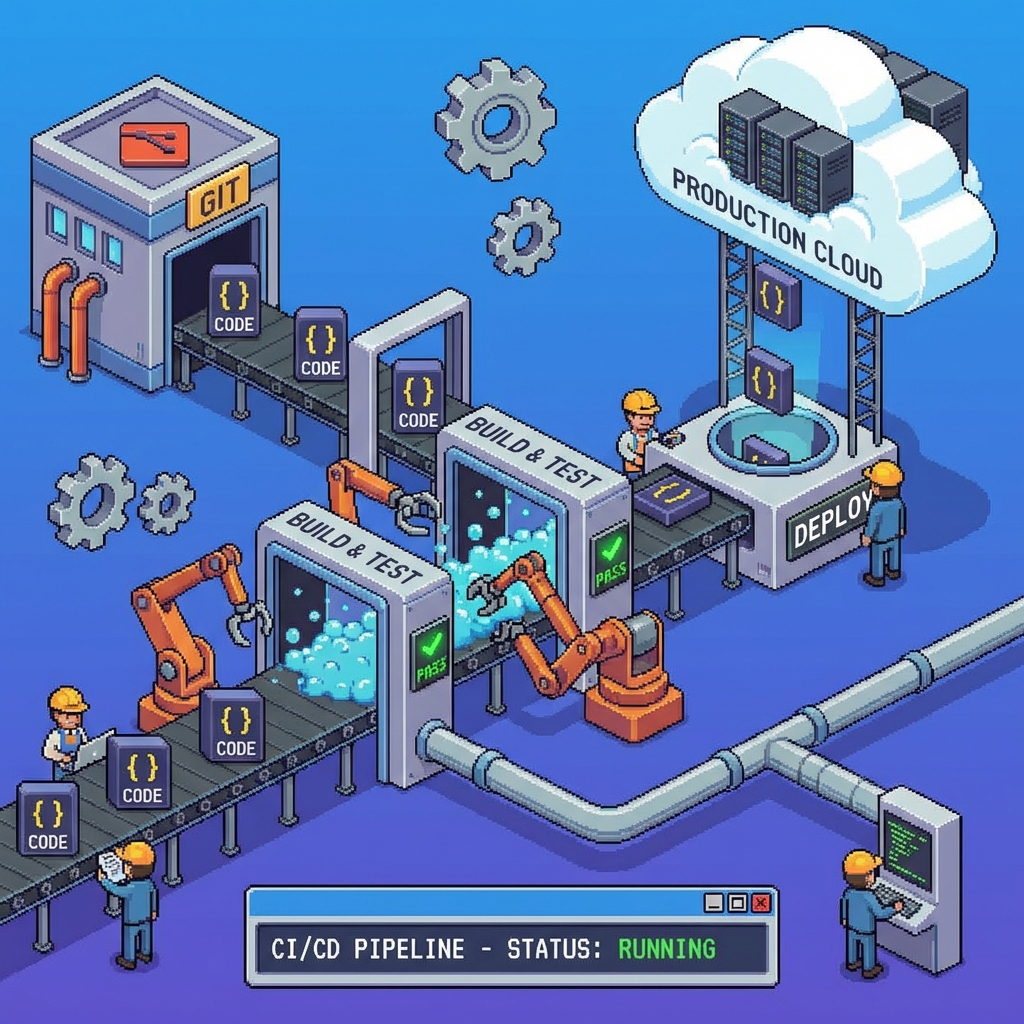
A complete GitLab CI/CD pipeline template for deploying Next.js apps to Google Cloud Run. Supports staging & production environments with custom configs and best practices.
This document provides a comprehensive,GitLab CI/CD pipeline template for deploying Next.js applications to Google Cloud Run. The pipeline supports separate staging and production environments with customizable configurations for different project requirements.
The template is designed to be flexible and easily adaptable to various Next.js projects, allowing developers to add or remove services as needed while maintaining best practices for security, deployment, and environment management.
Run the following commands for both staging and production projects:
# Replace 'your-project-id' with your actual project ID
gcloud config set project your-project-id

# Enable required Google Cloud APIs
gcloud services enable cloudbuild.googleapis.com
gcloud services enable run.googleapis.com
gcloud services enable artifactregistry.googleapis.com
Create Docker repositories in both projects to store your application images:
# For staging project
gcloud artifacts repositories create your-app-staging \
  --repository-format=docker \
  --location=your-preferred-region \
  --project=your-staging-project-id

# For production project
gcloud artifacts repositories create your-app-production \
  --repository-format=docker \
  --location=your-preferred-region \
  --project=your-production-project-id
Create dedicated service accounts for GitLab CI/CD operations:
# Staging service account
gcloud iam service-accounts create gitlab-ci-staging \
  --display-name="GitLab CI Staging Deployment" \
  --description="Service account for GitLab CI staging deployments" \
  --project=your-staging-project-id

# Production service account
gcloud iam service-accounts create gitlab-ci-production \
  --display-name="GitLab CI Production Deployment" \
  --description="Service account for GitLab CI production deployments" \
  --project=your-production-project-id
Assign necessary roles to service accounts for deployment operations:
# Staging permissions
gcloud projects add-iam-policy-binding your-staging-project-id \
  --member="serviceAccount:gitlab-ci-staging@your-staging-project-id.iam.gserviceaccount.com" \
  --role="roles/run.admin"

gcloud projects add-iam-policy-binding your-staging-project-id \
  --member="serviceAccount:gitlab-ci-staging@your-staging-project-id.iam.gserviceaccount.com" \
  --role="roles/artifactregistry.writer"

gcloud projects add-iam-policy-binding your-staging-project-id \
  --member="serviceAccount:gitlab-ci-staging@your-staging-project-id.iam.gserviceaccount.com" \
  --role="roles/iam.serviceAccountUser"

# Production permissions (replace with your production project details)
gcloud projects add-iam-policy-binding your-production-project-id \
  --member="serviceAccount:gitlab-ci-production@your-production-project-id.iam.gserviceaccount.com" \
  --role="roles/run.admin"

gcloud projects add-iam-policy-binding your-production-project-id \
  --member="serviceAccount:gitlab-ci-production@your-production-project-id.iam.gserviceaccount.com" \
  --role="roles/artifactregistry.writer"

gcloud projects add-iam-policy-binding your-production-project-id \
  --member="serviceAccount:gitlab-ci-production@your-production-project-id.iam.gserviceaccount.com" \
  --role="roles/iam.serviceAccountUser"
Generate JSON key files for authentication:
# Staging service account key
gcloud iam service-accounts keys create staging-key.json \
  --iam-account=gitlab-ci-staging@your-staging-project-id.iam.gserviceaccount.com

# Production service account key
gcloud iam service-accounts keys create production-key.json \
  --iam-account=gitlab-ci-production@your-production-project-id.iam.gserviceaccount.com
| Variable Name | Description | Type |
|---|---|---|
| STAGING_GCP_SERVICE_ACCOUNT | Content of staging-key.json file | File/Masked |
| PROD_GCP_SERVICE_ACCOUNT | Content of production-key.json file | File/Masked |
Add these variables based on your application's requirements. Remove or modify as needed:
| Staging Variable | Production Variable | Description |
|---|---|---|
| STAGING_API_BASE_URL | PROD_API_BASE_URL | Backend API endpoint URL |
| STAGING_WEB_BASE_URL | PROD_WEB_BASE_URL | Frontend application URL |
| STAGING_DATABASE_URL | PROD_DATABASE_URL | Database connection string |
| STAGING_REDIS_URL | PROD_REDIS_URL | Redis cache connection URL |
| STAGING_NEXTAUTH_SECRET | PROD_NEXTAUTH_SECRET | NextAuth.js secret key |
| STAGING_NEXTAUTH_URL | PROD_NEXTAUTH_URL | NextAuth.js canonical URL |
Ensure your Next.js project has the following structure:
your-nextjs-project/
├── .gitlab-ci.yml          # GitLab CI/CD configuration
├── Dockerfile              # Docker container configuration
├── .dockerignore          # Docker ignore patterns
├── package.json           # Node.js dependencies
├── next.config.js         # Next.js configuration
├── src/                   # Source code directory
└── public/                # Static assets
Create a Dockerfile in your project root with the
followingtemplate:
# =================================================================
# Multi-stage Dockerfile for Next.js Application
# =================================================================

# Stage 1: Dependencies installation
FROM node:18-alpine AS dependencies
WORKDIR /app

# Copy package files for dependency installation
COPY package*.json ./
# Install dependencies (production and development)
RUN npm ci

# =================================================================
# Stage 2: Build stage
FROM node:18-alpine AS builder
WORKDIR /app

# Copy dependencies from previous stage
COPY --from=dependencies /app/node_modules ./node_modules
# Copy source code
COPY . .

# Accept build arguments for environment variables
# Add or remove build arguments based on your application needs
ARG API_BASE_URL
ARG WEB_BASE_URL
ARG DATABASE_URL
ARG NEXTAUTH_SECRET
ARG NEXTAUTH_URL

# Set environment variables for build process
ENV API_BASE_URL=$API_BASE_URL
ENV WEB_BASE_URL=$WEB_BASE_URL
ENV DATABASE_URL=$DATABASE_URL
ENV NEXTAUTH_SECRET=$NEXTAUTH_SECRET
ENV NEXTAUTH_URL=$NEXTAUTH_URL
ENV NODE_ENV=production

# Build the Next.js application
RUN npm run build

# =================================================================
# Stage 3: Production runtime
FROM node:18-alpine AS runner
WORKDIR /app

# Create non-root user for security
RUN addgroup --system --gid 1001 nodejs
RUN adduser --system --uid 1001 nextjs

# Copy built application from builder stage
COPY --from=builder --chown=nextjs:nodejs /app/.next/standalone ./
COPY --from=builder --chown=nextjs:nodejs /app/.next/static ./.next/static
COPY --from=builder --chown=nextjs:nodejs /app/public ./public

# Switch to non-root user
USER nextjs

# Expose port (Cloud Run uses PORT environment variable)
EXPOSE 3000

# Set environment variables for runtime
ENV PORT=3000
ENV NODE_ENV=production

# Health check for container monitoring
HEALTHCHECK --interval=30s --timeout=3s --start-period=5s --retries=3 \
  CMD curl -f http://localhost:3000/api/health || exit 1

# Start the application
CMD ["node", "server.js"]
Create a .dockerignore file to exclude unnecessary
files:
# Dependencies
node_modules
npm-debug.log*

# Build outputs
.next
out

# Development files
.env*.local
.env.development
.env.test

# IDE and editor files
.vscode
.idea
*.swp
*.swo

# OS generated files
.DS_Store
Thumbs.db

# Git
.git
.gitignore

# Documentation
README.md
docs/

# CI/CD files
.gitlab-ci.yml
.github/

# Test files
__tests__
*.test.js
*.spec.js
coverage/
Create a .gitlab-ci.yml file in your project root with the
followingtemplate:
# =================================================================
#GitLab CI/CD Pipeline for Next.js on Google Cloud Run
# =================================================================
#
# This pipeline provides a flexible template for deploying Next.js applications
# to Google Cloud Run with separate staging and production environments.
#
# CUSTOMIZATION REQUIRED:
# 1. Update PROJECT_ID variables with your actual GCP project IDs
# 2. Update REPOSITORY names to match your Artifact Registry repositories
# 3. Update SERVICE_NAME values to match your Cloud Run services
# 4. Modify REGION if using a different GCP region
# 5. Add/remove environment variables based on your application needs
# 6. Adjust resource limits based on your application requirements
#
# BRANCH STRATEGY:
# - develop branch: triggers staging deployment
# - main/master branch: triggers production deployment
# =================================================================

# Define pipeline stages
stages:
  - build     # Build Docker images with environment-specific configurations
  - deploy    # Deploy to Google Cloud Run environments

# Global variables for the entire pipeline
variables:
  # Docker configuration for improved performance
  DOCKER_DRIVER: overlay2
  DOCKER_TLS_CERTDIR: "/certs"

  # Google Cloud configuration
  # CUSTOMIZE: Change to your preferred GCP region
  REGION: us-central1

  # Docker build configuration
  DOCKER_BUILDKIT: 1

# =================================================================
# STAGING ENVIRONMENT
# Triggers on: develop branch pushes
# =================================================================

# Build Docker image for staging environment
build_staging:
  stage: build
  image: docker:20.10.16
  services:
    - docker:20.10.16-dind
  variables:
    # CUSTOMIZE: Replace with your staging project details
    PROJECT_ID: your-staging-project-id
    REPOSITORY: your-app-staging
    SERVICE_NAME: your-app-staging
    IMAGE_NAME: ${REGION}-docker.pkg.dev/${PROJECT_ID}/${REPOSITORY}/${SERVICE_NAME}:${CI_COMMIT_SHA}
    IMAGE_NAME_LATEST: ${REGION}-docker.pkg.dev/${PROJECT_ID}/${REPOSITORY}/${SERVICE_NAME}:latest
  before_script:
    # Authenticate with Google Artifact Registry
    - echo "Authenticating with Google Artifact Registry..."
    - echo "$STAGING_GCP_SERVICE_ACCOUNT" > gcp-key.json
    - cat gcp-key.json | docker login -u _json_key --password-stdin https://${REGION}-docker.pkg.dev
    - echo "Authentication successful"
  script:
    # Build Docker image with staging environment variables
    - echo "Building Docker image for staging environment..."
    - |
      docker build \
        --build-arg API_BASE_URL="$STAGING_API_BASE_URL" \
        --build-arg WEB_BASE_URL="$STAGING_WEB_BASE_URL" \
        --build-arg DATABASE_URL="$STAGING_DATABASE_URL" \
        --build-arg NEXTAUTH_SECRET="$STAGING_NEXTAUTH_SECRET" \
        --build-arg NEXTAUTH_URL="$STAGING_NEXTAUTH_URL" \
        -t $IMAGE_NAME \
        -t $IMAGE_NAME_LATEST .

    # Push images to Artifact Registry
    - echo "Pushing images to Artifact Registry..."
    - docker push $IMAGE_NAME
    - docker push $IMAGE_NAME_LATEST
    - echo "Image push completed successfully"
  after_script:
    # Clean up sensitive files
    - rm -f gcp-key.json
    - docker system prune -f
  # Trigger conditions
  only:
    - develop
  # Retry configuration for build failures
  retry:
    max: 2
    when:
      - runner_system_failure
      - stuck_or_timeout_failure

# Deploy staging image to Google Cloud Run
deploy_staging:
  stage: deploy
  image: google/cloud-sdk:alpine
  variables:
    # CUSTOMIZE: Replace with your staging project details
    PROJECT_ID: your-staging-project-id
    REPOSITORY: your-app-staging
    SERVICE_NAME: your-app-staging
    IMAGE_NAME: ${REGION}-docker.pkg.dev/${PROJECT_ID}/${REPOSITORY}/${SERVICE_NAME}:${CI_COMMIT_SHA}
  before_script:
    # Authenticate with Google Cloud
    - echo "Authenticating with Google Cloud..."
    - echo "$STAGING_GCP_SERVICE_ACCOUNT" > gcp-key.json
    - gcloud auth activate-service-account --key-file=gcp-key.json
    - gcloud config set project $PROJECT_ID
    - echo "Authentication successful"
  script:
    # Deploy to Google Cloud Run
    - echo "Deploying to Cloud Run staging environment..."
    - |
      gcloud run deploy $SERVICE_NAME \
        --image $IMAGE_NAME \
        --platform managed \
        --region $REGION \
        --allow-unauthenticated \
        --memory 1Gi \
        --cpu 1 \
        --timeout 300s \
        --max-instances 10 \
        --min-instances 0 \
        --concurrency 80 \
        --set-env-vars "API_BASE_URL=$STAGING_API_BASE_URL,WEB_BASE_URL=$STAGING_WEB_BASE_URL,DATABASE_URL=$STAGING_DATABASE_URL,NEXTAUTH_SECRET=$STAGING_NEXTAUTH_SECRET,NEXTAUTH_URL=$STAGING_NEXTAUTH_URL"

    # Get service URL
    - SERVICE_URL=$(gcloud run services describe $SERVICE_NAME --region=$REGION --format="value(status.url)")
    - echo "Staging deployment completed successfully!"
    - echo "Service URL: $SERVICE_URL"
  after_script:
    # Clean up sensitive files
    - rm -f gcp-key.json
  # Trigger conditions
  only:
    - develop
  # Dependency on build stage
  needs:
    - build_staging

# =================================================================
# PRODUCTION ENVIRONMENT
# Triggers on: main/master branch pushes
# =================================================================

# Build Docker image for production environment
build_production:
  stage: build
  image: docker:20.10.16
  services:
    - docker:20.10.16-dind
  variables:
    # CUSTOMIZE: Replace with your production project details
    PROJECT_ID: your-production-project-id
    REPOSITORY: your-app-production
    SERVICE_NAME: your-app-production
    IMAGE_NAME: ${REGION}-docker.pkg.dev/${PROJECT_ID}/${REPOSITORY}/${SERVICE_NAME}:${CI_COMMIT_SHA}
    IMAGE_NAME_LATEST: ${REGION}-docker.pkg.dev/${PROJECT_ID}/${REPOSITORY}/${SERVICE_NAME}:latest
  before_script:
    # Authenticate with Google Artifact Registry
    - echo "Authenticating with Google Artifact Registry..."
    - echo "$PROD_GCP_SERVICE_ACCOUNT" > gcp-key-prod.json
    - cat gcp-key-prod.json | docker login -u _json_key --password-stdin https://${REGION}-docker.pkg.dev
    - echo "Authentication successful"
  script:
    # Build Docker image with production environment variables
    - echo "Building Docker image for production environment..."
    - |
      docker build \
        --build-arg API_BASE_URL="$PROD_API_BASE_URL" \
        --build-arg WEB_BASE_URL="$PROD_WEB_BASE_URL" \
        --build-arg DATABASE_URL="$PROD_DATABASE_URL" \
        --build-arg NEXTAUTH_SECRET="$PROD_NEXTAUTH_SECRET" \
        --build-arg NEXTAUTH_URL="$PROD_NEXTAUTH_URL" \
        -t $IMAGE_NAME \
        -t $IMAGE_NAME_LATEST .

    # Push images to Artifact Registry
    - echo "Pushing images to Artifact Registry..."
    - docker push $IMAGE_NAME
    - docker push $IMAGE_NAME_LATEST
    - echo "Image push completed successfully"
  after_script:
    # Clean up sensitive files
    - rm -f gcp-key-prod.json
    - docker system prune -f
  # Trigger conditions - customize based on your main branch name
  only:
    - main    # Change to 'master' if that's your default branch
  # Retry configuration for build failures
  retry:
    max: 2
    when:
      - runner_system_failure
      - stuck_or_timeout_failure

# Deploy production image to Google Cloud Run
deploy_production:
  stage: deploy
  image: google/cloud-sdk:alpine
  variables:
    # CUSTOMIZE: Replace with your production project details
    PROJECT_ID: your-production-project-id
    REPOSITORY: your-app-production
    SERVICE_NAME: your-app-production
    IMAGE_NAME: ${REGION}-docker.pkg.dev/${PROJECT_ID}/${REPOSITORY}/${SERVICE_NAME}:${CI_COMMIT_SHA}
  before_script:
    # Authenticate with Google Cloud
    - echo "Authenticating with Google Cloud..."
    - echo "$PROD_GCP_SERVICE_ACCOUNT" > gcp-key-prod.json
    - gcloud auth activate-service-account --key-file=gcp-key-prod.json
    - gcloud config set project $PROJECT_ID
    - echo "Authentication successful"
  script:
    # Deploy to Google Cloud Run with production configuration
    - echo "Deploying to Cloud Run production environment..."
    - |
      gcloud run deploy $SERVICE_NAME \
        --image $IMAGE_NAME \
        --platform managed \
        --region $REGION \
        --allow-unauthenticated \
        --memory 2Gi \
        --cpu 2 \
        --timeout 900s \
        --max-instances 100 \
        --min-instances 1 \
        --concurrency 1000 \
        --set-env-vars "API_BASE_URL=$PROD_API_BASE_URL,WEB_BASE_URL=$PROD_WEB_BASE_URL,DATABASE_URL=$PROD_DATABASE_URL,NEXTAUTH_SECRET=$PROD_NEXTAUTH_SECRET,NEXTAUTH_URL=$PROD_NEXTAUTH_URL"

    # Get service URL
    - SERVICE_URL=$(gcloud run services describe $SERVICE_NAME --region=$REGION --format="value(status.url)")
    - echo "Production deployment completed successfully!"
    - echo "Service URL: $SERVICE_URL"
  after_script:
    # Clean up sensitive files
    - rm -f gcp-key-prod.json
  # Trigger conditions - customize based on your main branch name
  only:
    - main    # Change to 'master' if that's your default branch
  # Dependency on build stage
  needs:
    - build_production
  # Manual approval for production deployments (optional)
  when: manual
  allow_failure: false

# =================================================================
# OPTIONAL: Additional Jobs
# =================================================================

# Run tests before deployment (optional)
test:
  stage: build
  image: node:18-alpine
  before_script:
    - npm ci
  script:
    - npm run test
    - npm run lint
  only:
    - develop
    - main
  cache:
    key: ${CI_COMMIT_REF_SLUG}
    paths:
      - node_modules/

# Security scanning (optional)
security_scan:
  stage: build
  image: docker:20.10.16
  services:
    - docker:20.10.16-dind
  script:
    - docker build -t temp-image .
    - docker run --rm -v /var/run/docker.sock:/var/run/docker.sock aquasec/trivy:latest image temp-image
  allow_failure: true
  only:
    - develop
    - main
To add new environment variables for your specific services:
STAGING_YOUR_VARIABLE and
PROD_YOUR_VARIABLE
ARG
and ENV statements--build-arg and --set-env-vars sections
| Application Type | Memory | CPU | Max Instances |
|---|---|---|---|
| Small Application | 512Mi | 1 | 10 |
| Medium Application | 1Gi | 1 | 50 |
| Large Application | 2Gi | 2 | 100 |
| Enterprise Application | 4Gi | 4 | 1000 |
Common services you might want to add:
| Error | Cause | Solution |
|---|---|---|
| Docker authentication failed | Invalid service account credentials | Verify service account key in GitLab variables |
| Build context too large | Large files in build context | Update .dockerignore file |
| NPM install fails | Missing dependencies or network issues | Check package.json and npm registry access |
| Error | Cause | Solution |
|---|---|---|
| Insufficient permissions | Service account lacks required roles | Verify IAM permissions for service account |
| Resource allocation errors | Insufficient memory or CPU | Adjust resource limits in deployment script |
| Application startup failures | Missing environment variables | Verify all required environment variables are set |